Adding a new participant
Mindchart allows you to create client or patient profiles so you can securely collect outcome measures, add notes, and track progress over time.
Only authorised users (administrators) can add new clients or patients.
Step 1: Go to the participant area
After signing in to Mindchart:
- Navigate to Patients in the sidebar menu
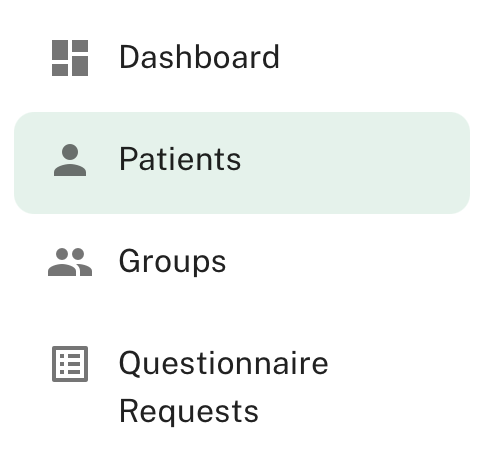
- Select Add patient in the top right of the screen

This opens the client creation form.
Step 2: Enter participant details
You’ll be asked to enter some basic information. This will include some required fields:
-
Participant name - You can enter a first and last name for the participant or, if preferred, you can choose an internal ID that can be used.
-
Email Address - This is the email address that is used to send questionnaires to the participant.
There are also some further optional fields that can be completed. Only enter information that is necessary for care, tracking, or reporting, in line with your organisation’s policies:
-
Date of Birth (enter the date) Please note that some questionnaire scores are calculted in relation to the participants current age so a date of birth would be needed to assure accurate results.
-
Internal ID - This can be used for internal tracking if linking up data between multiple systems.
-
Start Date - Can be used to provide a start date of treatment, monitoring or the start of a programme being administered.
-
Gender - Select an option from the choices provided by the dropdown menu.
-
Ethnicity - Select an option from the choices provided by the dropdown menu.
-
Funding - Select an option from the choices provided by the dropdown menu. Some clinicians / clinics might use this to monitor different fundinf modelss for their participants.
Step 3: Choose access and visibility options
Depending on your setup, you may be able to:
- Assign the participant to a specific team member. Multiple team members can be assigned to a participant.
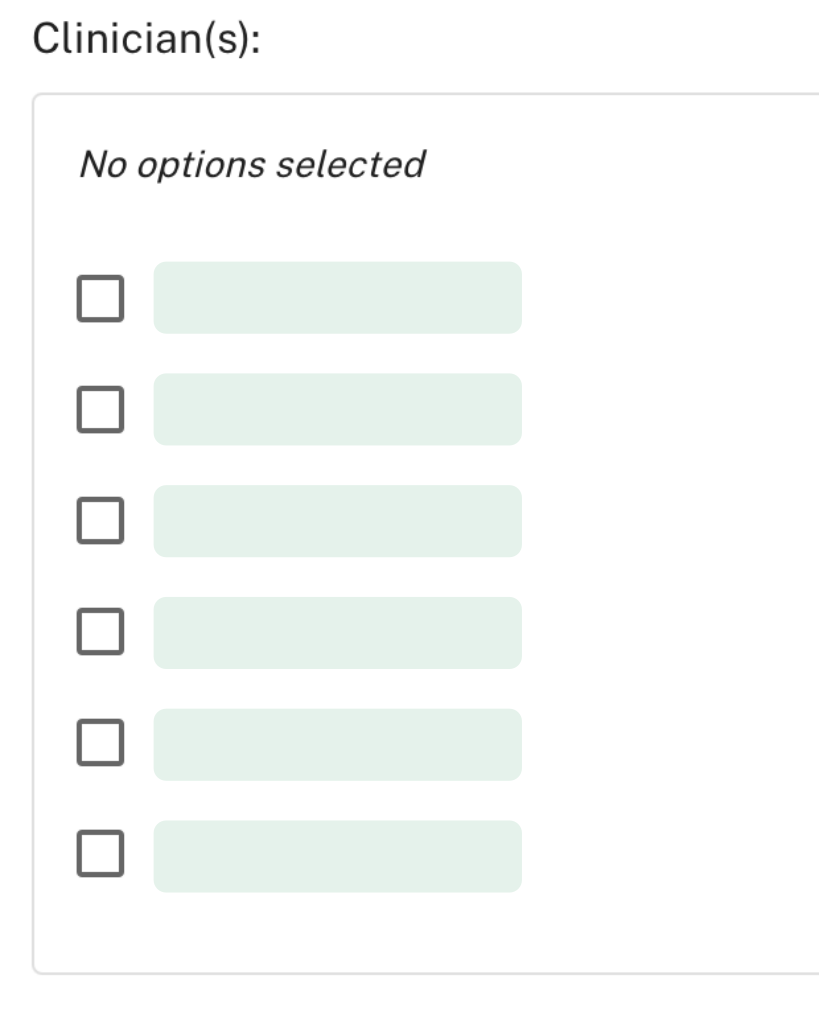
- Team members can be assigned to or removed from participants after the profile has been added.
These settings help ensure appropriate access and confidentiality. Please remember that admin roles can see all information.
Step 4: Add an intake note
You can add a note for the participant which will be stored in the notes section associated with this participant:
- Write a note in the intake notes section
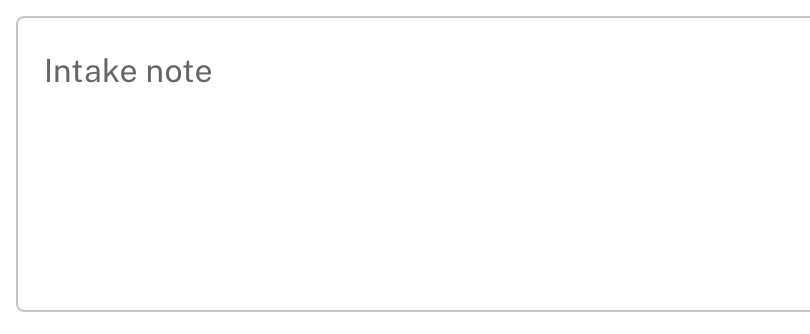
The note will be available to view or amend on the participant's profile.
Step 5: Save the participant profile
Once the details are complete:
- Review the information
- Select Add
The participant profile will now appear in your list and can be used to assign outcome measures.
Managing client records
You can return to a participant's profile at any time to:
- Assign or remove team members
- Send new questionnaires
- View completed questionnaires
- Add and share notes
- Review progress over time
Participant records can also be archived or deleted at any time according to your organisation’s data retention policies.
Privacy and data protection
When adding participants:
- Only collect data that is necessary
- Ensure you have appropriate consent where required
- Follow your organisation’s information governance policies
For more detail, see Data & Security and GDPR and UK compliance.
Need help?
If you’re unsure what information to enter or how client access works:
- Check your internal policies
- Speak with an administrator
- Contact the Mindchart team for guidance
Next: learn how to send questionnaires to participants.